
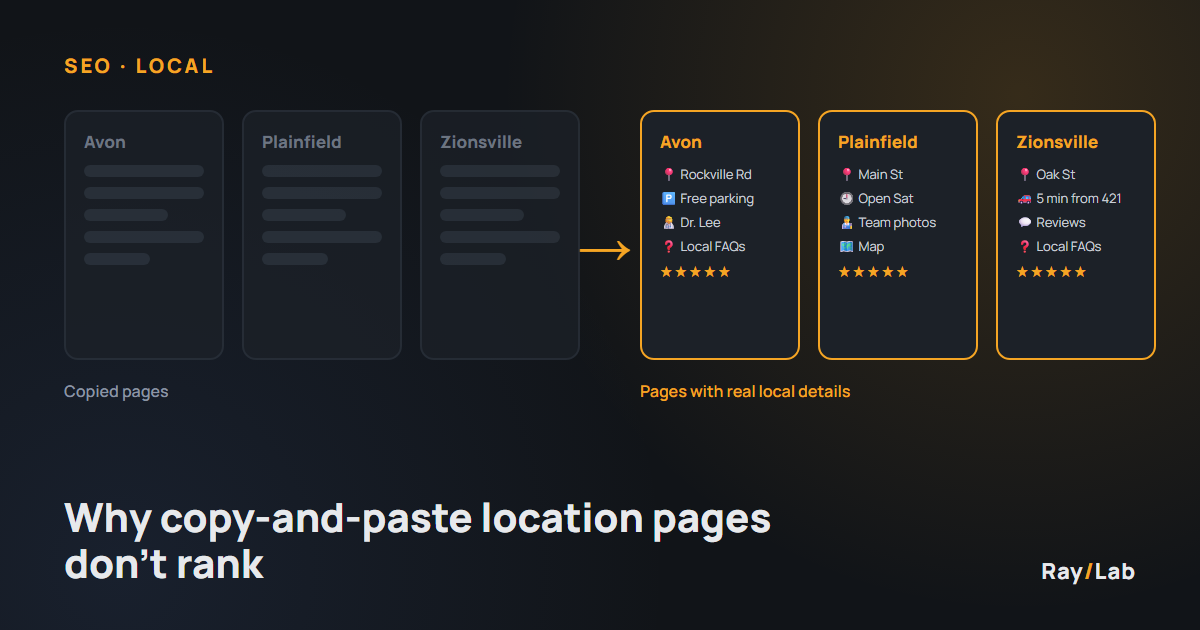
If your business has more than one location, there’s a good chance your website has a set of pages that look like this: “Our Services in Avon,” “Our Services in Plainfield,” “Our Services in Zionsville.” Same layout, same paragraphs, same photos. The only thing that changes is the city name.
It feels efficient. You built one good page, copied it for each location, and swapped the town. Done.
The problem is that Google, and the AI tools people now use to find local businesses, usually don’t see five useful pages. They see one page and four copies. Here’s why that matters, how to tell if your site has the problem, and what to do instead.
Why copied location pages struggle
When several pages on your site say almost the same thing, Google has to decide which one deserves to show up. It usually picks one and quietly ignores the rest. That means your Avon page might rank fine while your Plainfield page barely appears, even though both locations are open, staffed, and ready for customers.
It’s not a penalty. Google just doesn’t see a reason to show a page that adds nothing new. AI search tools like ChatGPT and Google’s AI Overviews work in a similar way. They look for specific, useful details to quote. A page that only swaps the city name doesn’t give them anything worth citing.
There’s a human side too. A customer in Plainfield who lands on a page that reads exactly like the Avon page doesn’t learn anything that helps them choose you: where to park, who they’ll see, or whether you’re five minutes away or twenty-five.
Signs your website has this problem
- Your location pages read the same except for the city name.
- The text under each page in Google is identical, or doesn’t mention the location at all. (Search your business name plus a city and look at the description Google shows.)
- Some location pages never show up in Google, even when you search for the exact service and town.
- Pages are named after places people don’t search for, like a building, campus, or neighborhood nickname instead of the city customers actually type.
- Old copies are still live, like a page with “-2” at the end of its web address from when someone duplicated it in WordPress.
What to do instead
1. Keep one template, but make the details local
You don’t need to write every location page from scratch. Keep a shared layout for your services, then fill each page with things that are actually true about that location. That’s what makes it worth showing up:
- The street address, a map, and parking or entrance tips
- Hours, if they differ by location
- The staff or providers who work there, with photos
- Photos of that specific office, storefront, or job sites
- Nearby towns and neighborhoods you serve from that location
- Reviews from customers at that location
- A few local FAQs, like “Do you serve Brownsburg from your Avon office?”
2. Name locations the way customers search
If your office is inside a medical campus or business park, that name may mean a lot to you and nothing to someone searching. Use the city people type into Google first, then mention the building. “Physical Therapy in West Lafayette, IN, at the Riverside Health Campus” will get found. “Physical Therapy in Riverside Campus” usually won’t.
3. Write a unique title and description for each page
The title and short description are what people see in Google before they click. Each location page should name the service and the city, and give someone a reason to pick you. For example:
- Before: “Our Services | Riverside Physical Therapy”
- After: “Physical Therapy in Avon, IN | Riverside PT”
- Description: “Physical therapy in Avon for back, knee, and sports injuries. Same-week appointments and free parking off Rockville Rd. Book your first visit today.”
4. Add location details for search engines too
Behind the scenes, each location page can include structured data (schema), a small block of code that tells Google the business name, address, phone number, and hours for that specific location. Most SEO plugins, like Rank Math or Yoast, can help with this. Make sure the details match your Google Business Profile exactly.
5. Clean up old copies
If you find leftover duplicates, like that “-2” page, redirect them to the real page so Google stops splitting attention between them. Then remove them from your sitemap so search engines only see the pages you actually want found.
6. Link it all together
Each location should have a main page that links to the services offered there, and each Google Business Profile should link to its matching location page, not just your homepage. That makes it easy for both customers and Google to find the right page.
Start small
If you have dozens of location pages, don’t try to fix them all at once. Pick your two or three most important services at your busiest locations and give those pages real local details first. Then watch Google Search Console over the next couple of months to see which ones start picking up more searches and clicks, and keep going from there.
I’ve written service area pages for towns around Indianapolis like Avon and Zionsville, and the local details are always what set each page apart. If you’d like a second set of eyes on your location pages, get in touch and I’ll tell you where I’d start.


